
File Upload
The File Upload page in Ops UI allows operators to upload lender payment/NACH CSV files for processing into the data pipeline.
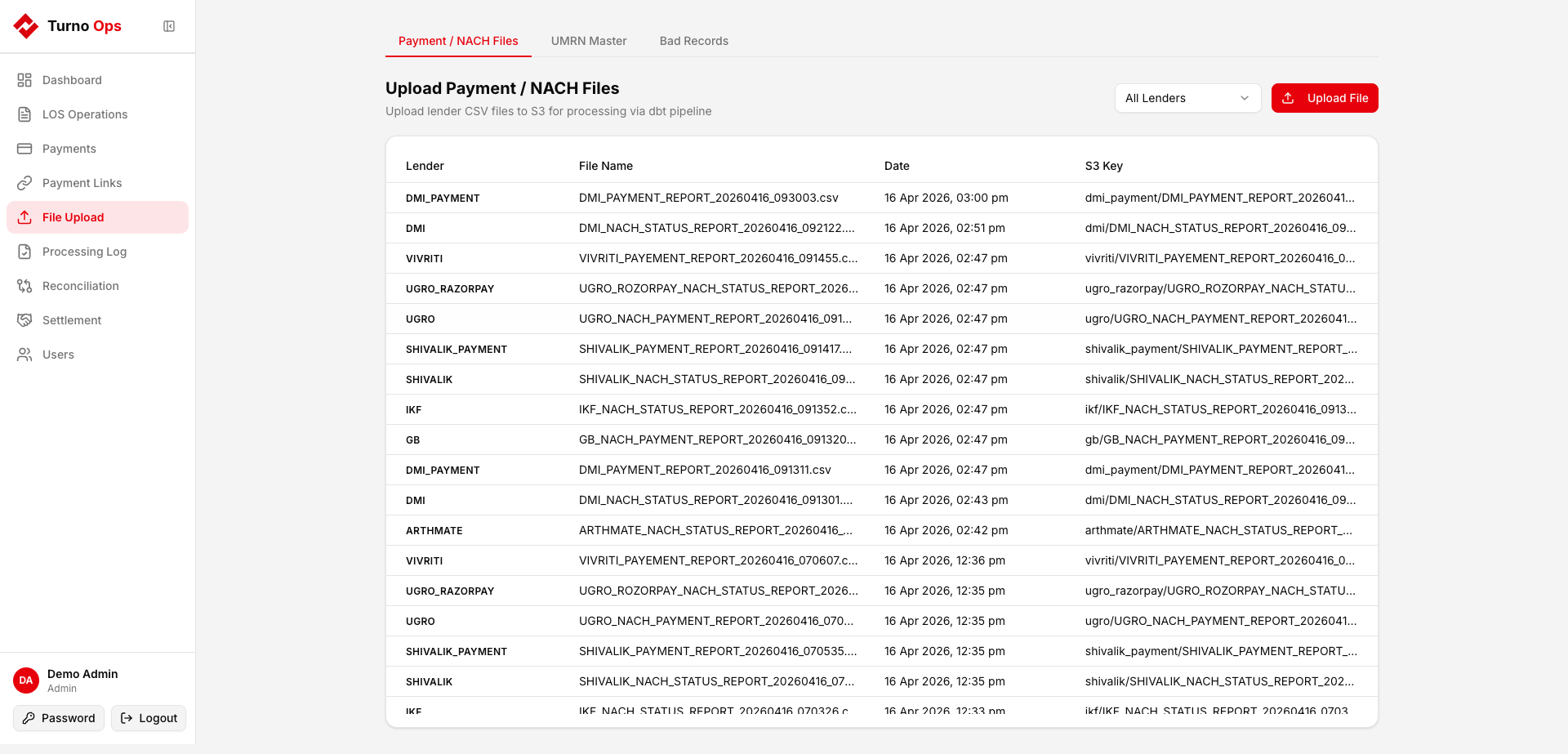
Upload Flow
How to Upload
- Go to File Upload > Payment / NACH Files tab
- Click Upload File
- Select the Lender from the dropdown
- The dialog shows the minimum required columns the CSV must contain
- Select the CSV file
- Client-side validation checks if the CSV headers match the lender's expected columns
- Click Upload to S3
Validations
Column Validation
When a lender is selected, the expected columns (from the YAML config) are displayed. Before uploading, both client-side and server-side checks verify the CSV contains all required columns.
If columns are missing, the error shows:
- Which columns are missing
- Which columns were found in the CSV
- A suggestion if the file matches a different lender better (e.g., "This file looks like it might belong to 'gb' instead")
Duplicate Detection
Each uploaded file's content is hashed (MD5). If the same file has already been uploaded and processed successfully for the same lender, the upload is blocked with details of the previous upload.
Status Filtering
Only "success" records are loaded into RAW. Records with bounce/failed status are captured in the Bad Records tab.
Amount Filtering
Only records with amount > 0 are loaded. Zero or negative amounts are rejected.
File Processing
After upload, the RQ worker:
- Downloads the CSV from S3
- Applies YAML mapping - renames columns, casts types, applies post-compute
- Runs filters - drops rows that don't match status/amount criteria
- Extracts sub-references - for GB/UGRO Cashfree files, parses
subReferenceIdfromOrder Note - UMRN lookup - resolves blank loan IDs using the UMRN Master table
- Saves to RAW - accepted rows go to the lender's RAW table
- Saves rejections - dropped rows go to
RAW_REJECTED_RECORDS - Archives - original file moved to
archive/prefix on S3
File List
The table shows all previously uploaded files with:
- Lender - which lender the file belongs to
- File Name - the timestamped S3 filename
- Date - upload timestamp (from the processing log)
- S3 Key - full S3 path
Use the lender dropdown to filter by specific lender.
Requirements
The following services must be running for file upload to work:
- Quart App (port 5002) - serves the upload API
- Redis - RQ job queue backend
- RQ Worker - processes the upload job
- PostgreSQL - stores the processed data